Phone Conversations and Hearing Loss: Settings That Can Help
Phone calls can be easier with speakerphone, captions, hearing-aid streaming, telecoil compatibility, and a few volume habits. Learn what to try and when to arrange a hearing evaluation.
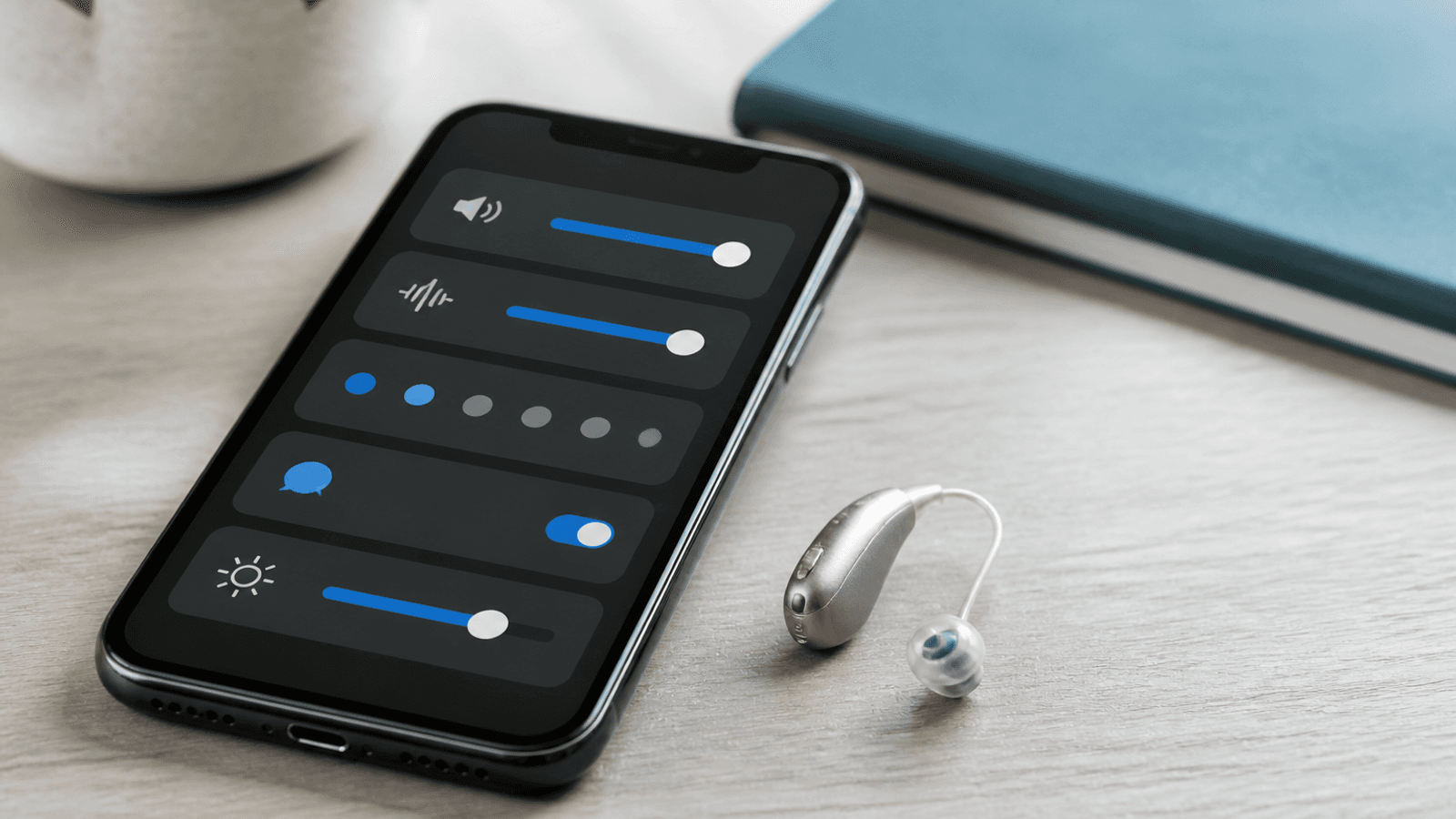
If phone calls sound muffled, distant, or too fast, start by changing how the call reaches you. A clearer signal, text support, and a quieter location may help more than simply turning up the volume.
Start With the Call Setup
Move to a quiet room and keep the phone microphone and speaker openings clear. Try speakerphone at a comfortable level, or use a headset or hearing-aid connection that sends the caller's voice directly to your ears. Ask the other person to move somewhere quieter, speak clearly, and pause between ideas. If several people are on the call, ask them to speak one at a time.
If sound is distorted or uncomfortable, lower the volume. More volume cannot restore speech information that the microphone, connection, or ear is not delivering.
Use Captions or Text Support
Some phones can show captions for calls or other audio. Follow the setup instructions for Android Live Caption or iPhone Live Captions. Some Android phones can also read typed replies aloud during a call. Availability depends on the device, software, language, region, and calling app.
Captions are a support, not a perfect transcript. Names, numbers, accents, medical terms, and overlapping speech may be incorrect. In a high-risk or emergency conversation, confirm critical information another way.
Connect Hearing Aids or Use Telecoil
Some hearing aids can stream calls from a compatible phone. Follow the Android pairing instructions or iPhone hearing-device setup. Check Apple's U.S. hearing aid compatibility guide for information about Made for iPhone hearing aids and telecoil support by model.
A telecoil, or T-coil, receives a compatible magnetic signal and can make telephone speech clearer for some users. NIDCD's assistive-device guide also describes captioned telephones and relay options. Ask your audiologist or hearing-aid manufacturer which connection your devices support.
Make Text and RTT Part of the Plan
Text messaging, email, captioned video calls, and real-time text (RTT) can help when voice calls are difficult. RTT lets the other person see the words as you type during a call. Follow the Android RTT instructions or iPhone RTT and TTY instructions. Check support for your phone, carrier, and location.
In the United States, dialing 711 connects voice and text telephone (TTY) users to telephone relay services. Other relay services can have different access methods. For a TTY emergency, call 911 directly. See the FCC guide to 711 for TTY-based relay for details.
Use a method that fits the conversation. A text confirmation can prevent an incorrect appointment time or medication instruction when a caption was unclear.
Review Hearing-Aid Settings
If streamed calls are too loud, too soft, tinny, or unbalanced, do not make repeated extreme changes on your own. Note the phone model, connection route, and situations that cause trouble. A hearing-aid appointment can review fit, programs, receivers, and compatible accessories.
If calls are difficult with or without hearing aids, a hearing evaluation can assess hearing and communication needs.
Phone Features Have Limits
Menus change, and a feature listed online may not work on your model, carrier, language, or calling app. Follow the manufacturer's current instructions. Captions can lag or mis-hear words. Bluetooth can introduce connection or battery problems. Speakerphone can help one listener but expose a private call to others. Choose the least complicated setup that works reliably.
If your hearing drops suddenly, all at once or over a few days, get medical care immediately. Seek prompt care for significant ear pain, drainage, or severe dizziness.
If you also have gradual trouble following speech away from the phone, try our free online hearing test. It checks how you hear tones and recognize words over background sound. It cannot diagnose or rule out hearing loss.
A Simple Troubleshooting Order
Try a quieter location, clear the phone openings, and adjust volume to a comfortable level. Then try speakerphone, a headset, hearing-aid streaming, captions, or RTT. Confirm important details in writing. If the same problem persists, request an appointment and bring the phone and hearing-aid model information.
Sources
NIDCD. Assistive Devices for People with Hearing, Voice, Speech, or Language Disorders.
Android Accessibility Help. Live Caption: Caption Media & Calls.
Android Accessibility Help. Connect Hearing Aids to Your Device.
Apple Support. About Hearing Aid Compatibility Requirements for iPhone.
- Apple Support. Use Hearing Devices with iPhone.
- Android Accessibility Help. Use Real-Time Text (RTT) with Calls.
- Apple Support. Set Up and Use RTT and TTY on iPhone.
- Federal Communications Commission. 711 for TTY-Based Telecommunications Relay Service.